Showing posts with label GMAIL Tips. Show all posts

Monday, July 15, 2019

10 Can't-Miss Gmail Tips & Tricks That Will Change the Way You Email

From:

 1. Smart Compose
 2. Schedule an Email to Send Later
 3. Cut Corners with Keyboard Shortcuts
 4. Un-send an Email
 5. This Email will Self-destruct in 3, 2, 1..
 6. Canned Responses
 7. Put Your Gmail on Snooze
 8.The Personal Assistant You Didn't Know You Needed
 9. Put It On Your Tab
10. Never Break the Chain


Wednesday, September 5, 2018

Dropbox Add-on for Gmail

This tool integrates Dropbox and Gmail, and introduces the new partnership between the two. With the Dropbox add-on for Gmail, you’ll be able to view, store, and share any file—from the smallest doc to the largest video—without leaving your inbox. This integration offers a cross-browser, cross-platform addition to the existing Dropbox for Gmail extension for Chrome. This new add-on will work with any browser, as well as the Gmail app for Android and—coming soon—iOS. 


With the Dropbox Add-on for Gmail, you can: 

  • View, save, and share any Dropbox file – big or small, including photos, videos, presentations, docs, project work, and more – from the Dropbox Add-on for Gmail. 
  • Easily find and sync your Dropbox files in Gmail anytime, on any browser or device. 

Pick it up at the G Suite Marketplace.

Tuesday, December 19, 2017

Gmail: Enable Undo Send

Gmail: Enable Undo Send


Yes, there's a way to undo a sent email in Gmail! 
  1. From your Gmail account, click on the gear icon and choose Settings
  2. On the General tab of the settings screen, scroll down to the Undo Send section
  3. Check the "Enable Undo Send" box
  4. Choose the number of seconds you'd like to be allowed to cancel your message
  5. Don't forget to scroll down and Save Changes

Now when you see the pop-up window, you'll have the opportunity to click Undo.
Once you undo the message from being sent, you'll be returned to normal edit mode.


Friday, November 20, 2015

Google: You Can Now Restore Deleted Calendar Events


    See your deleted events (computer only)
    1. On your computer, open Google Calendar.
    2. On the left side of the page, find the My calendars list.
    3. To the right of your calendar's name, click the dropdown menu > Trash. ...
    4. Check the box to the left of any events you want to move.
    5. Click Delete forever or Restore selected events.

    Delete an event - Calendar Help - the Google Help Center

    https://support.google.com/calendar/answer/37113?hl=en
    Google

Thursday, November 21, 2013

Print your Google Calendar!

Print or create a PDF of your Google Calendar!
Something new to me - the ability to print out or save various views of my Google calendar or agenda!

Here's how:

1. Go to the calendar you want to print or save
2. Click on MORE and Print
3. You will automatically be in Print Preview and you can make adjustments as needed
4. If you'd like to convert your view to a PDF, click on Save As

*Note: I needed to expand the window to full size in Chrome to see the Save As option on the bottom right corner

I love being able to print out specific calendars and agenda in Google! Sometimes being able to hand a calendar page to a colleague, print out my personal calendar or having the ability to write notes on the week's work agenda is helpful!

Friday, September 6, 2013

Gmail Tip: Signing out of all Sessions

I'm not sure if I signed out from that other computer on campus! Help!


Normally, if you want to sign out of Gmail or Google Apps, it's just a matter of clicking on your email address in the top right of your screen and selecting Sign out.

But what if you have been on more than one computer and one of them was in a public location like on campus or in a library? What if you closed the browser but later realized you forgot to sign out of Gmail or other Google accounts? 


To sign out of all sessions go to any computer with an internet connection and do the following:

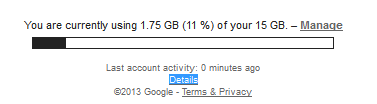
1. Open your Gmail account and click on the Details link at the bottom of your screen.

 
2. Choose to Sign out of all other sessions (it will leave you logged in your Google account on the current computer only).

Friday, August 30, 2013

Gmail Tip: Adding Groups of Contacts

I want to add a bunch of contacts at once in Gmail, such as large groups of students!

To import contacts to Gmail:
  1. Create a custom CSV file, or export the address book from your other webmail provider or email client as a CSV file.
  2. Sign in to Gmail.
  3. Click Gmail at the top-left corner of your Gmail page, then choose Contacts.
  4. Click the More button above the contacts list and select Import....
  5. Click the Choose File button.
  6. Select the file you'd like to upload and click the Import button.
When it's done, Gmail will display the number of contacts imported.
If you receive any error messages during the import, you might need to edit your CSV file.

Note: These CSV files work with Outlook, Outlook Express, Yahoo! Mail, Hotmail, Eudora, and some other email providers. But the CSV files that these applications produce might not contain all of the supported contact fields. For example, when Outlook exports to a CSV file, it omits data including attachments, distribution lists, contact pictures, the "file as" field, the "alias" field, and text formatting in the "notes" field. Google Contacts doesn’t have a way to know what was omitted, so we suggest that you manually copy over any important information in these fields after you import your contacts.

Friday, August 9, 2013

Gmail Tips: Saving a Message Template

Gmail Tips
How do I create a message template in Gmail for future use?

 Step 1 
To enable message templates in Gmail:

  • Click the Settings gear in your Gmail's toolbar.
  • Select Settings from the menu.
  • Go to the Labs tab.
  • Make sure Enable is selected for Canned Responses.
  • Click Save Changes. 
 Step 2 
To save an email for future use as a template in Gmail:
  • Make sure "Canned Responses" is enabled. (see above)
  • Compose your message in Gmail.
    • You may leave your signature in place if you want it to appear in messages sent using the template.
    • Leave both the Subject: and To: fields empty. They are not saved together with the template. (You can populate the Subject if you want to use it as your template's name)
  • At the bottom of the compose window next to the trash can, click on the little down arrow [MORE OPTIONS] and then select Canned responses.
  • Select New canned response... under Save.
  • Type the desired name for your template.
  • Click OK. 
When you are ready to use your template: 
  • Select COMPOSE
  • Enter your recipients and subject 
  • Click on the little arrow [MORE OPTIONS] at the bottom right of the compose window
  • Select Canned responses & then Insert the template name you just created.

STAY TUNED FOR MORE GOOGLE APPS TIPS AND INFO!

Thursday, June 27, 2013

Outlook to Gmail

Outlook-Gmail Tips
I want to move/copy my email folders (with the emails intact) from Outlook to Gmail. How do I do that with the least amount of pain?

This question was posed to me by a faculty member recently. I did a bit of research and came up with a pretty easy fix for this. Here's the link to the instructions: http://www.cte.hawaii.edu/Googly/Outlookfolders2Gmail.pdf. If you have problems working through the process, please call the UH Manoa ITS Helpdesk and they will walk you through it. Phone: (808) 956-8883 Toll Free (neighbor isles): (800) 558-2669