Showing posts with label tips. Show all posts

Friday, August 11, 2017

Thursday, January 12, 2017

Google Classroom: Assign Work to Small Groups of Students

What Can You Do With It?


Brought to you by:

Matt Miller and ditchthattextbook.com


5 Options:


1. Group activities — Assign an activity to an individual group. Then, all the group members are all together in one place. You won’t have to check and double check who is in which group.

2. Providing extra practice — If some students are struggling and could use some extra work — or some suggested sites for practice — assign it just to those students.

3. Leveling activities — Differentiate an activity by creating two, three or four versions of it. A more basic version of the activity has less steps, less detail or less rigor. A more advanced version has more steps, detail or rigor. Add one or two versions in the middle and you have several levels to challenge a variety of students. Assign as needed.

4. Interest-based activities — Have some Harry Potter fans in class? Or a group that loves motocross or sports? If you can identify groups of students that have the same interest, how fun would it be to include those interests in the work they do in class?

5. Rotating activities — If you have stations or a set of activities students will do over a period of days or weeks, keep assignments simple by assigning just the one that group is working on. If students will rotate through four different activities, assign one group just activity #2 until they’re done with it. Then assign them the next one. The “reuse post” feature will make this quick and easy once you’ve assigned all of the activities once.

How-To:


Here’s what it looks like (described with words and images):

1 create assignment

1. Open Google Classroom and go to a class. Click the “+” button in the bottom right corner and click, “Create assignment.

2 all students

2. You’ll notice a drop-down menu that says “All students” next to the name of the class you’re assigning to. That’s where this feature comes in … click it!

3 select students

3. If you want to assign to all students, just leave it as is. All students are selected by default. But if you want to select a smaller group of students to assign to, uncheck “All students”. Then select the students you want using the check boxes next to their names.

4 assign

4. Complete your assignment. (Don’t forget to do the instructions part. When students are absent or return back to an assignment later, they’ll be lost without them!) Then click “Assign.” (You can also schedule it or save it as a draft with the drop-down triangle button next to “Assign”.)

5 grading area

5. Your assignment is assigned to that group! When you go to grade the assignment (click on the “Done” or “Not done” area), you’ll see that only the students you assigned it to are displayed.

(Note: Any students you did not assign this assignment to will not see this assignment in Google Classroom.) 

Wednesday, August 27, 2014

New **Google Slides for iPad & iPhone**

Google Introduces Slides for iOS!
Create, edit, and collaborate with others on presentations from your iPod, iPhone, or iPad with the free Google Slides app. With Google Slides you can:

* Create new presentations or edit any that were created on the web or on another device 

* Share presentations and work together with others in the same presentation at the same time

* Open, edit, and save Microsoft PowerPoint files* Get stuff done anytime -- even without an internet connection* Add and rearrange slides, format text and shapes, and more

* Present right from your device* Never worry about losing your work -- everything is automatically saved as you type


FREE in the APP Store


Thursday, November 21, 2013

Print your Google Calendar!

Print or create a PDF of your Google Calendar!
Something new to me - the ability to print out or save various views of my Google calendar or agenda!

Here's how:

1. Go to the calendar you want to print or save
2. Click on MORE and Print
3. You will automatically be in Print Preview and you can make adjustments as needed
4. If you'd like to convert your view to a PDF, click on Save As

*Note: I needed to expand the window to full size in Chrome to see the Save As option on the bottom right corner

I love being able to print out specific calendars and agenda in Google! Sometimes being able to hand a calendar page to a colleague, print out my personal calendar or having the ability to write notes on the week's work agenda is helpful!

Thursday, October 24, 2013

MindMapping!

If you haven't tried mindmapping, you're missing out on a fantastic tool!

I discovered mindmapping a few years ago when I was looking for a way to organize and plan a website step-by-step in a visual environment without using paper and pencil. Not only does mindmapping allow you great flexibility in planning, it serves as a system whereby you can brainstorm and organize at the same time. It's easy to create, edit, delete and move your ideas around on the screen. Currently, I use MindMeister.

I also designed our department events workflow here at UHM Center for Teaching Excellence. When the workflow changes or evolves, I jump on MindMeister and update it in a minute or two!

Mindmapping in Education caught my eye recently when I read this article from EmergingEdTech:

Teaching Creativity – The Case for Mind Mapping by Jane Karwoski, PhD on October 10, 2013


Thursday, September 19, 2013

iPad Screen Shots and Photo Sharing

How can I share a screenshot with my iPad?

It's surprising how many people don't realize how easy it is to take and share a screenshot with their iPad! Try it out!


Take a screenshot


Share your image
Press and release the Sleep/Wake button at the top right of your iPad and the Home button at the same time. You’ll see the screen ‘flash’ white and hear a camera ‘clicking’ sound. Now open the Photos app on your iPad. The screenshot is added to your Camera Roll album. Tap the thumbnail to view the screenshot. 


Tap the Share button (arrow) at the top left of your screen. A window will open up where to can choose email, Twitter, print, Facebook, etc. Tap the appropriate icon to share or post online.


Friday, September 6, 2013

Gmail Tip: Signing out of all Sessions

I'm not sure if I signed out from that other computer on campus! Help!


Normally, if you want to sign out of Gmail or Google Apps, it's just a matter of clicking on your email address in the top right of your screen and selecting Sign out.

But what if you have been on more than one computer and one of them was in a public location like on campus or in a library? What if you closed the browser but later realized you forgot to sign out of Gmail or other Google accounts? 


To sign out of all sessions go to any computer with an internet connection and do the following:

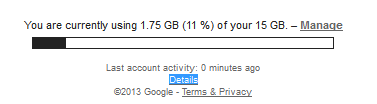
1. Open your Gmail account and click on the Details link at the bottom of your screen.

 
2. Choose to Sign out of all other sessions (it will leave you logged in your Google account on the current computer only).

Thursday, June 27, 2013

Welcome to edsquared!

edsquared
Aloha everyone!

As an Educational Specialist at the Center for Teaching Excellence, I'm excited about the introduction of this blog to our University of Hawai'i community. I have lots of great ideas to keep you up-to-date with technology in education, plus I'll be offering lots of Tips & Tricks, a little bit of advice, and a place for you to comment on topics, request help or assist others who may need some guidance. Your thoughts and ideas are encouraged! 

I look forward to presenting up-and-coming sessions and workshops on campus. You can check our calendar here. 


Please don't hesitate to email me if you'd like to see a particular topic addressed. Some of the topics I plan to cover will be Google Education, Gmail Tips & Tricks, Google Forms, Google Sites, Google Search, Google Docs (collaborative) Twitter, plagiarism, information literacy, copyright guidelines, and iPad related topics + much more!


suzy :)